The Members table helps classroom teachers view and manage the teachers and students who have joined a classroom.
Search the Members table
Use the search field at the top of the Members table to quickly find teachers or students by name or email address.
Search results update as you type and show only matching users.
This is useful when a classroom has many members and you need to find a specific person quickly.
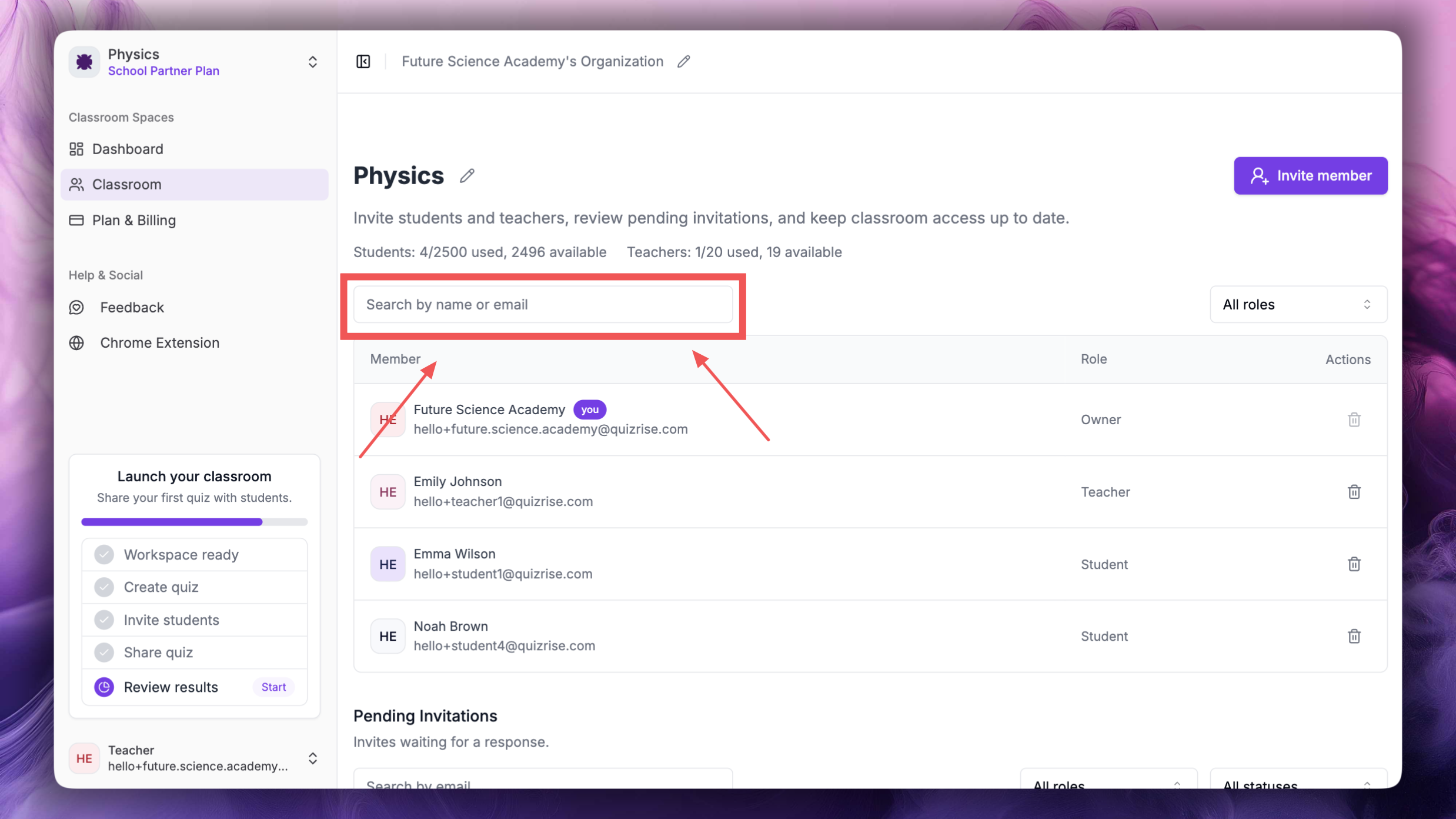
Search the Members table
Filter classroom members by name or email address.
Filter by role
The Role filter lets you view members by role.
Choose All roles, Owner, Teacher, or Student to show only the members you need.
This helps classroom teachers manage large classrooms more easily.
Filter classroom members by role
Use All roles, Owner, Teacher, or Student to narrow the Members table.
Remove a member
To remove a user’s classroom access, open Members and click the Remove member icon next to that member. Removing a member only removes their access to this classroom. Their account and other classrooms stay the same.
After the user is removed, they can no longer access that classroom or the learning materials shared in it.
If the user needs access again later, invite them to the classroom again.
QuizRise may block a removal when it would remove the classroom Owner, leave the classroom without any members, or remove a user from their last classroom.
Why the Owner cannot be removed
Every classroom has an Owner. The Owner is the permanent owner record for that classroom.
The Owner cannot be removed from the classroom. Remove member is available only for Teacher and Student members.
Who can manage members?
Classroom teachers can manage members. This includes invited Teachers and Owners whose account type is Teacher.
They can invite teachers and students, manage pending invitations, and remove Teacher or Student access from the classroom.
Invited Students and Owner accounts whose account type is Student cannot manage members, send classroom invitations, or remove existing members.